
How to invite students
to a class using the chat
in your Zoom account.
This is an article for teachers who use the Zoom platform to run online classes. Usually, to invite your class (group) to a lesson, you send the student a link to that lesson. Or, in the best case, the students have the teacher's ID (a permanent personal meeting number) that they use to join according to the class schedule.
We have prepared a guide for teachers on how to gather students for your virtual lessons with a single button in your Zoom account.
Step 1.
Adding student and teacher emails to the contacts in your Zoom account.
An important note. All teachers and students must be registered with Zoom in advance; only then will they get an account of their own and be able to create channels (groups).
In your Zoom account there is a section called "contacts". To add a user to your contacts, you need to send them an invitation by email (the email they used to register with Zoom in advance). They have to confirm the invitation. After that they will appear in the "contacts" section of your Zoom account.

Step 2. Creating a channel (group) in the chat of your Zoom account.
To do this, go to the chat in your account, create a new channel (group) and give it a name (for example, "1-A").
Add all the students and teachers of your class to this channel.
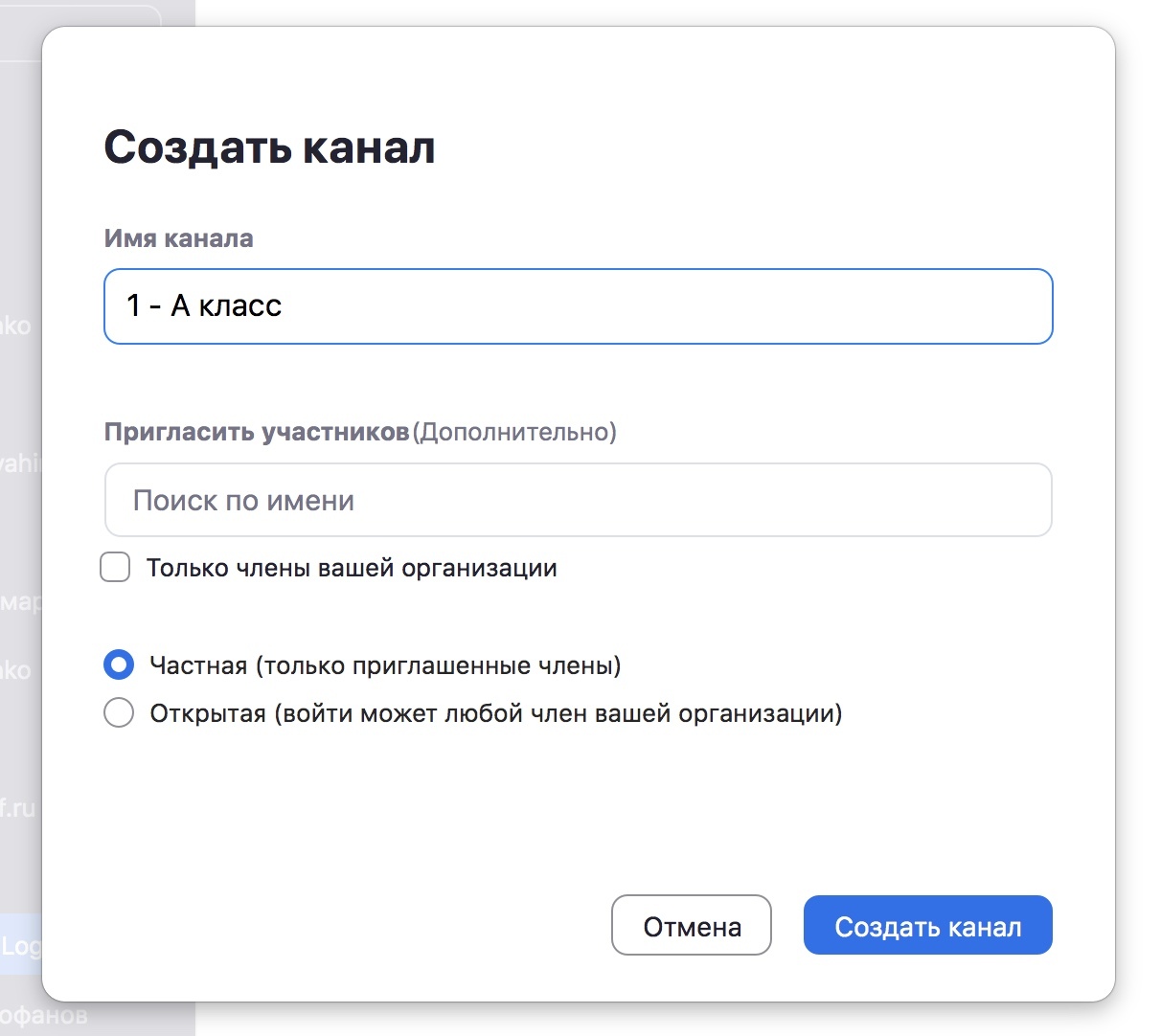
Step 3. Inviting students to a class from the chat in your Zoom account.
To invite students to a class, the teacher has to open their class group and invite everyone to the video lesson by clicking the "camera" icon.

When one of the group members (in this case the teacher) clicks the camera in the chat, everyone else hears a ring. And the online lesson begins.
Try Zoom today
We'll give you a remote demo Monday to Friday, 10:00–16:00 Moscow time, answer all your questions and provide trial access so you can explore the system yourself.
Please note: we work with legal entities only.
