Multi-stream video, or how to run a Zoom meeting by feng shui.
Zoom.us has one very useful and interesting piece of functionality that few users know about. Zoom supports multi-stream video,
which means that any participant of a Zoom meeting or webinar
can choose how they would rather watch the online event.
During a meeting or a video webinar, some people want to look at the presenter. Others want to see all the meeting participants or the webinar speakers (the difference between a Zoom meeting and a Zoom webinar). Zoom shows them all at once in identical windows. And some find it convenient to watch the screen share.
By default, Zoom shows event participants the speaker (whoever is talking at that moment). But, to repeat, Zoom is a multi-stream system, and while online any participant can choose for themselves what they want to watch.
All these settings are located in the top right corner of the monitor screen. “Play around” with them and decide how you find it most convenient to watch a Zoom online event.
Situation 1. A meeting is under way and nobody is sharing their screen. In this case, in the top right corner you can choose: speaker view (the speaker full screen) or gallery view (all the meeting participants in identical windows).
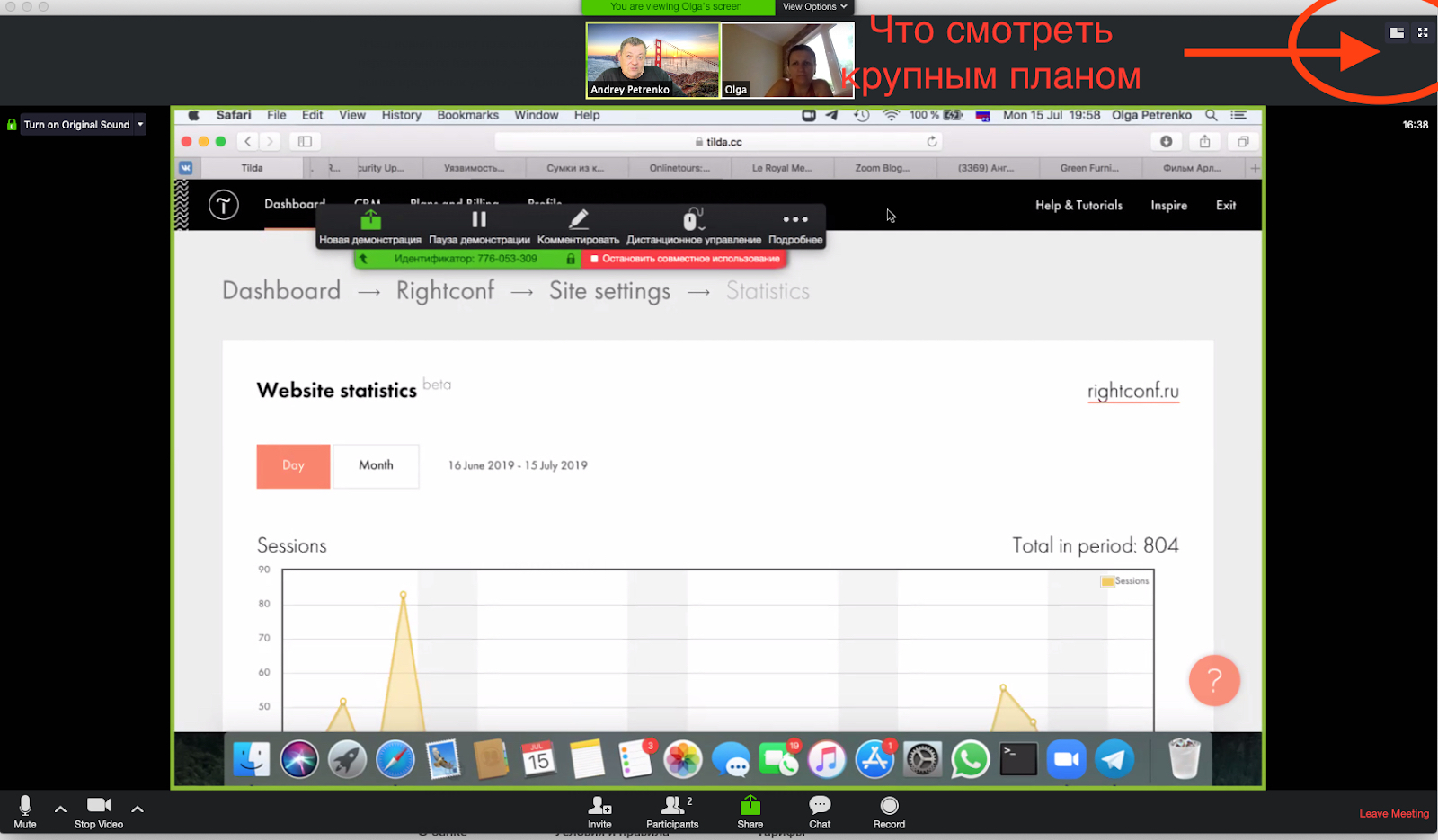
Situation 2. The moment one of the participants starts sharing their screen, a little square with a “notch” appears in the top right corner. This square lets you switch the video between the active speaker and what they are sharing.
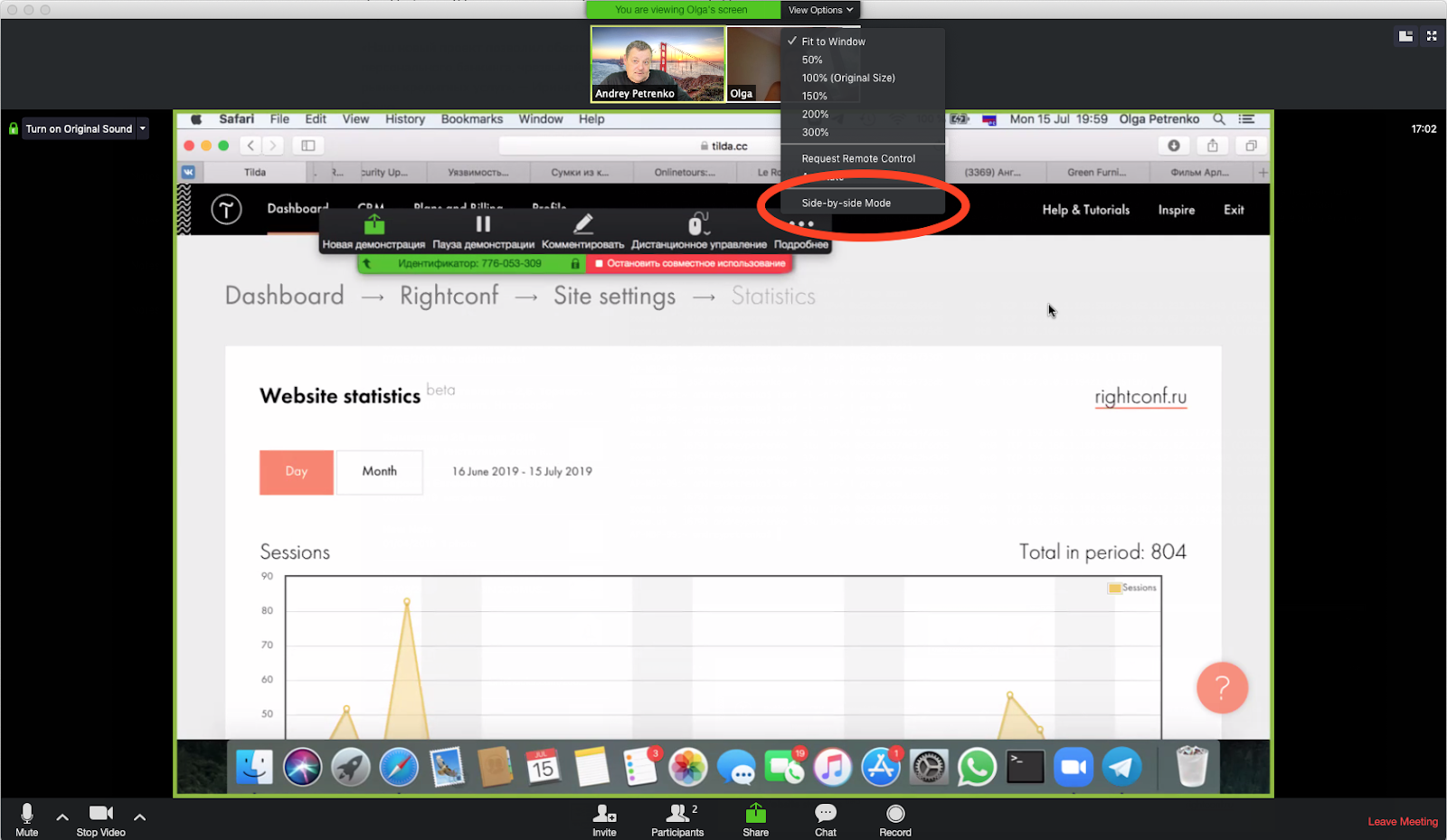
During screen sharing, a “view options” panel also appears at the top; on this panel you can choose side-by-side mode.
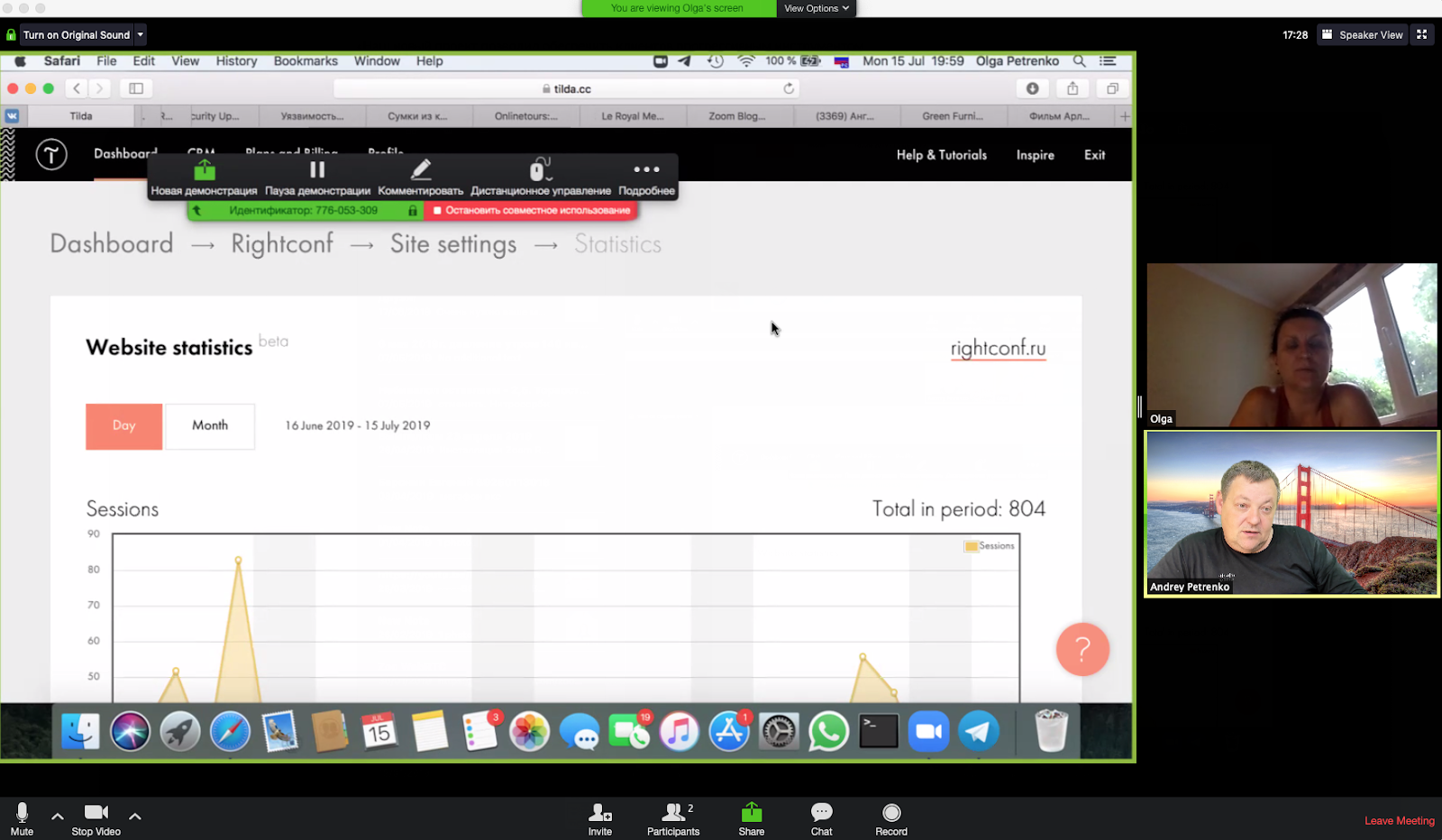
You will see both the shared screen and all the participants.
There will be a vertical divider between them, which you can drag left and right depending on what you want to see larger.
It should be noted that all the settings described above are only available during a live online event. They are not available in a recording.
Multi-stream video is functionality that is very important for running meetings (conferences, get-togethers), as well as for anyone involved in distance learning.
An important announcement for anyone who has decided to equip a meeting room (or rooms). From this year we not only supply Zoom room software, but also fit out meeting rooms turnkey - Turnkey Zoom room.
Zoom.us is constantly optimizing and and expanding its platform. Updates come out at least once a month. Would you like to learn more about how to use Zoom for communication? The Rightconf specialists are ready to tell you more about what Zoom can do!
Try Zoom today
We'll give you a remote demo Monday to Friday, 10:00–16:00 Moscow time, answer all your questions and provide trial access so you can explore the system yourself.
Please note: we work with legal entities only.
