Useful Zoom features.
Waiting Room, aka the waiting room.
For additional manual authorisation of participants, the host of a Zoom meeting can use the "Waiting Room" feature.
To do this, enable the following in your personal account:
Settings – Meeting – In Meeting(Advanced) – Waiting Room. In the same place you can additionally choose who should be sent to the Waiting Room: all participants of your Zoom meeting or only guest participants, i.e. those who do not belong to your domain.
Participants joining the Zoom meeting will be sent automatically to the "Waiting Room". The event host will then need to move them into the meeting manually. To do this, select "Manage Participants" at the bottom of the screen...
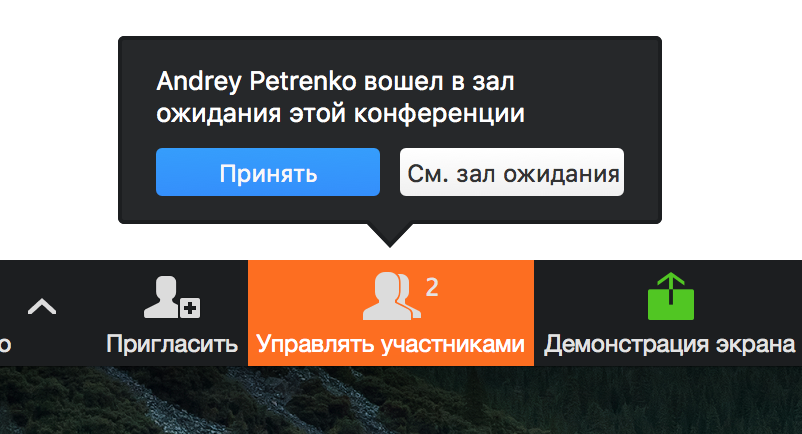
And then, in the pop-up window, select "Admit" or "Remove" next to the participant.
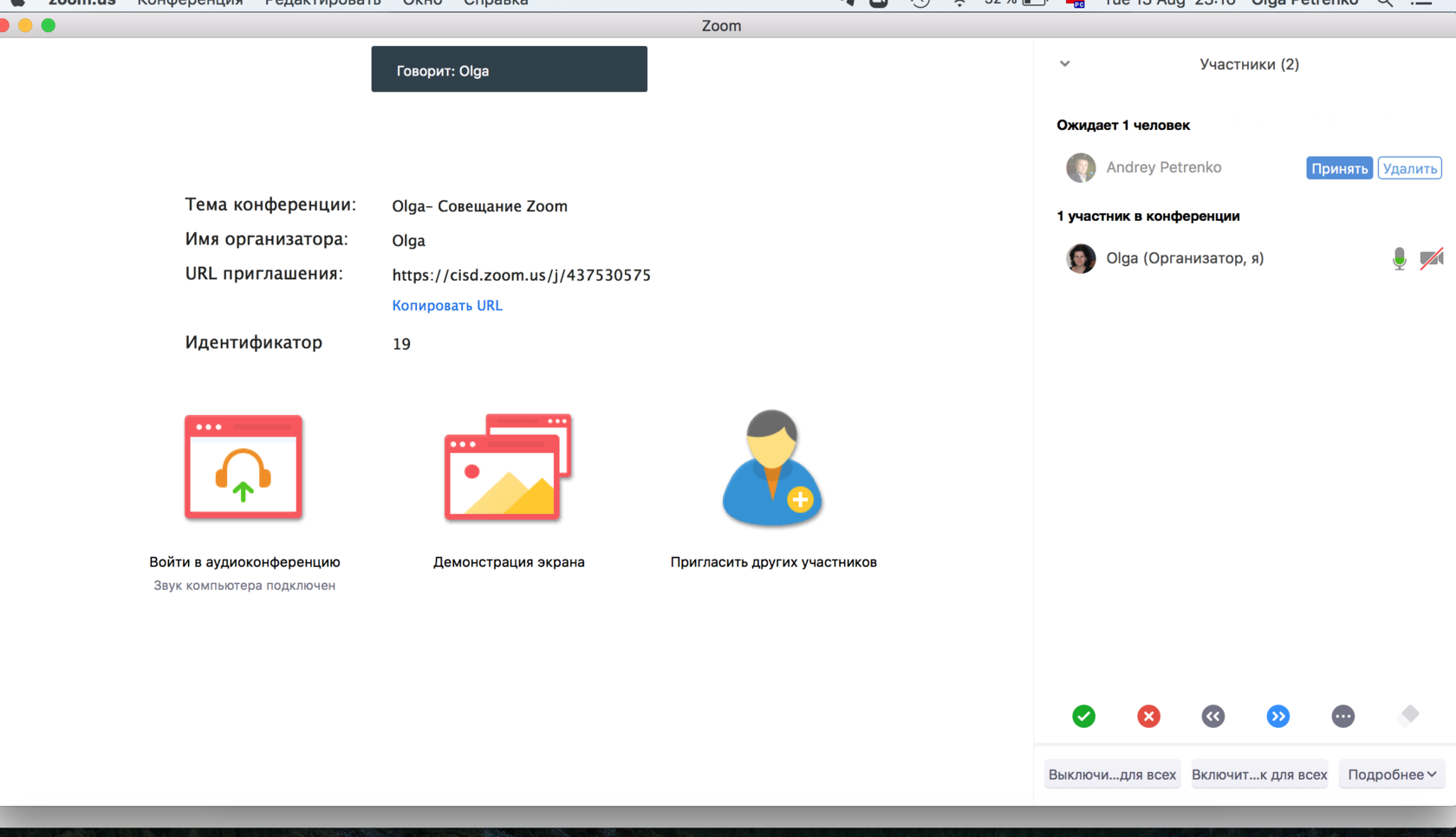
The "Waiting Room" feature is especially useful when you are holding a closed meeting for a limited group of people. And it is highly undesirable for you that someone might attend your Zoom meeting by accident or by mistake.
More about Zoom meetings here. You can read about how a meeting differs from a webinar in this article.
Zoom.us is constantly optimizing and and expanding its platform. Updates come out at least once a month. Would you like to learn more about how to use Zoom for communication? The Rightconf specialists are ready to tell you more about what Zoom can do!
Try Zoom today
We'll give you a remote demo Monday to Friday, 10:00–16:00 Moscow time, answer all your questions and provide trial access so you can explore the system yourself.
Please note: we work with legal entities only.
