
Zoom meetings.
Breakout Rooms.
The “Breakout Rooms” feature lets you split your Zoom conference into separate discussion rooms. You can create up to 50 breakout rooms, and each room can hold up to 200 participants.
To turn on “Breakout Rooms”, go to your personal account — Settings — Meeting — In Meeting (Advanced) — Breakout room. A “Breakout Rooms” button will appear in the bottom right of your monitor screen.
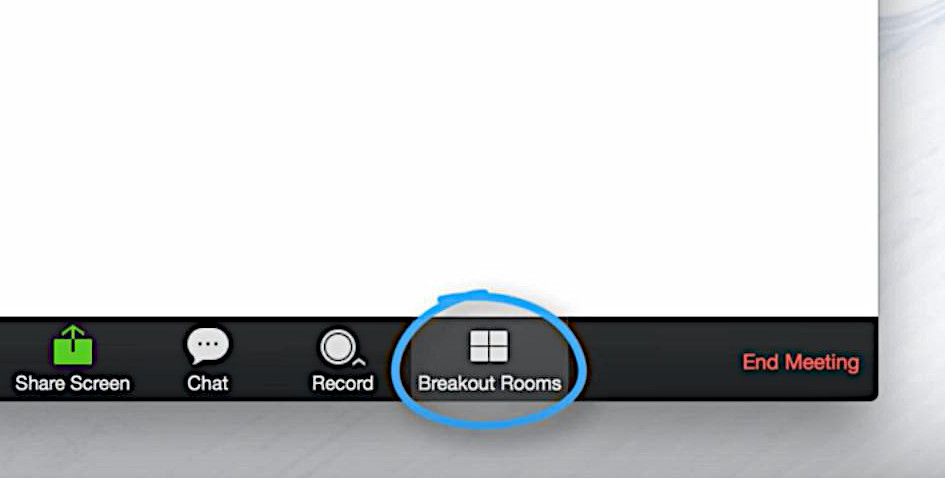
The host of a Zoom meeting can split participants into separate breakout rooms manually or automatically.
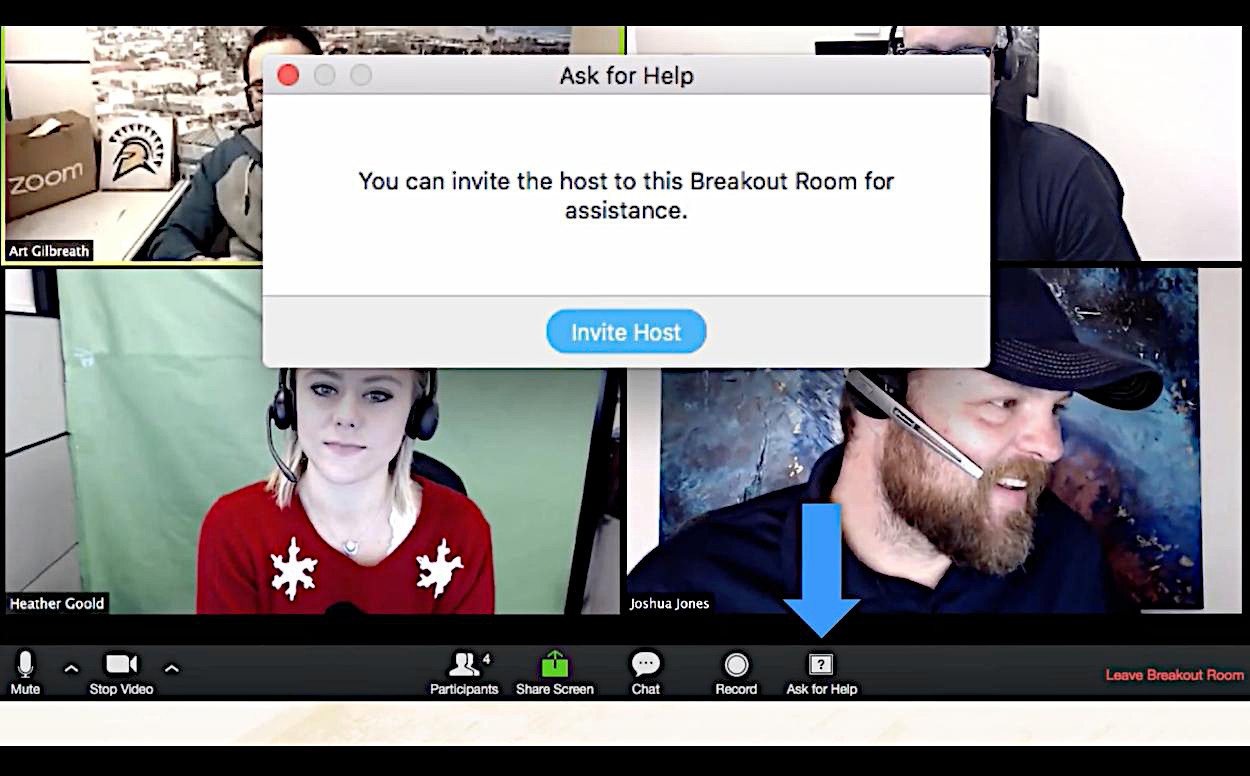
Participants in a discussion room have full capabilities for sharing audio, video and monitor screens. They can write in the chat and record the event. In addition, participants can ask for help and invite the event host into their room.
If the conference is being recorded to the cloud, only the main room will be recorded, no matter which room the meeting host is in. If local recording is used, it will record the room the participant who is recording is in ( you can read more about cloud and local recording here ).
To close the breakout rooms, click "Close All Rooms" in the breakout rooms menu. In that case the breakout rooms will finish after 60 seconds and all participants will automatically return to the main conference.
The “Breakout Rooms” feature will be especially useful for teachers and everyone involved in distance learning. The conference host can hand out individual assignments to students and distribute them into separate rooms.
Or, as another option, when a meeting is being held between company employees, they can then split into separate rooms for further discussion. The meeting host can switch freely between rooms.
Previously, only the host could record a Zoom meeting in Breakout Rooms . He recorded the main room. Recording the breakout rooms themselves was not available. After one of the recent Zoom updates it became possible to record directly in the breakout rooms. Read about this in detail in the article Breakout Rooms. Recording a Zoom meeting by the host and participants.
Note. Users who joined a Zoom meeting with the Zoom Desktop Client, the Zoom Mobile app or H.323 / SIP devices can take part in breakout rooms.
Users who connected through the web client and Zoom Rooms cannot join breakout rooms, but the main room can be used as an alternative session for those users.
Zoom.us is constantly optimizing and and expanding its platform. Updates come out at least once a month. Would you like to learn more about how to use Zoom for communication? The Rightconf specialists are ready to tell you more about what Zoom can do!
Try Zoom today
We'll give you a remote demo Monday to Friday, 10:00–16:00 Moscow time, answer all your questions and provide trial access so you can explore the system yourself.
Please note: we work with legal entities only.
