
Virtual background.
Chroma key.
Today high technology is at the peak of its development. And if you need to make a business video call from, say, your bedroom, chroma key technology (ChromaKey) will come to your rescue. This technology lets you replace a real background with a virtual one. All you need for it is a green cloth. The Zoom platform will do the rest: it will combine several images into a single composition by replacing and merging backgrounds.
How do you set up and start a virtual background (chroma key) in a Zoom conference? To do this you need to sign in to your personal account — Settings — Meeting — In Meeting (Advanced) — Virtual background.
Next, open the Zoom desktop app and choose an image there (or upload your own).
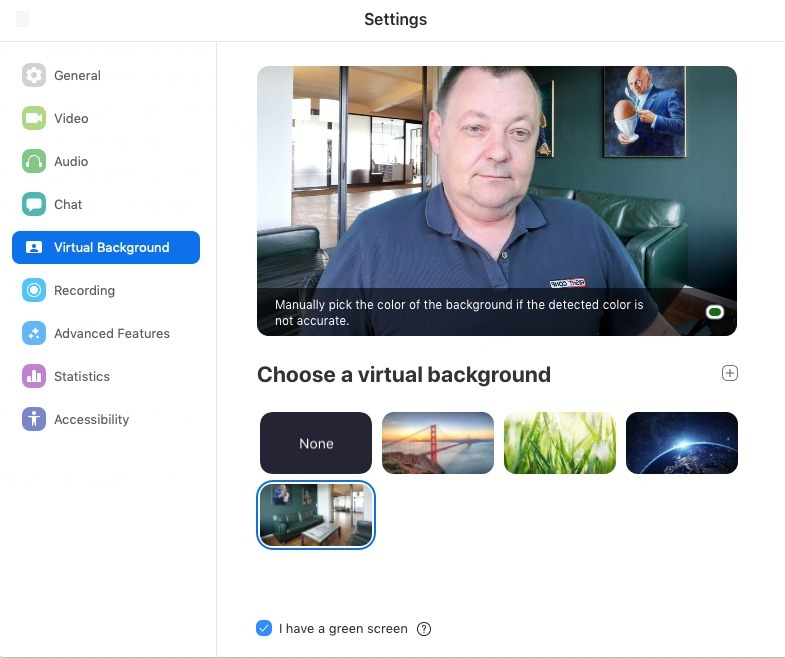
Zoom can work with the latest webcams. With them a green screen is not needed.
Note. There are no size limits when you add your own virtual backgrounds, but Zoom recommends cropping the image before uploading it to match the aspect ratio of your camera.
Example: if your camera is set to 16: 9, an image of 1280 pixels by 720 pixels or 1920 pixels by 1080 pixels will work well.
Zoom.us is constantly optimizing and and expanding its platform. Updates come out at least once a month. Would you like to learn more about how to use Zoom for communication? The Rightconf specialists are ready to tell you more about what Zoom can do!
Try Zoom today
We'll give you a remote demo Monday to Friday, 10:00–16:00 Moscow time, answer all your questions and provide trial access so you can explore the system yourself.
Please note: we work with legal entities only.
