
With a number of features Zoom helps users feel more comfortable in virtual meetings. Filters, reactions, lighting adjustment and noise suppression make sure that wherever your meeting takes place, your video image will be at its best.
Filters
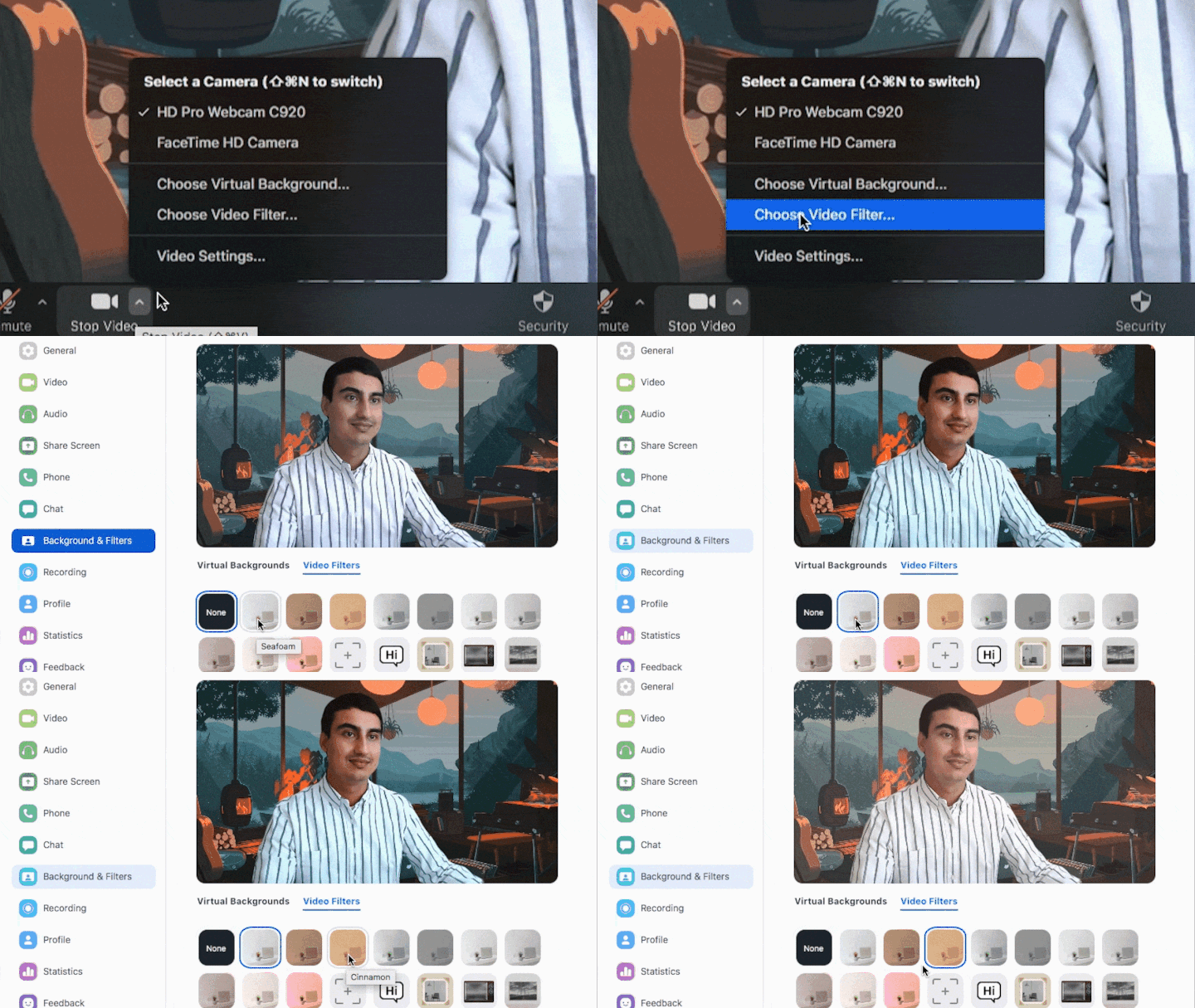
Zoom filters are filters that improve the way you look in video meetings. With this feature you can enhance your meetings with various color tones, video frames and AR stickers, some of which can be applied to the whole screen and some only to your face.
Filters in Zoom work in a similar way to how they work on other platforms, all of which add a layer/mask on top of your video stream so that you look better.
Lighting and touch up
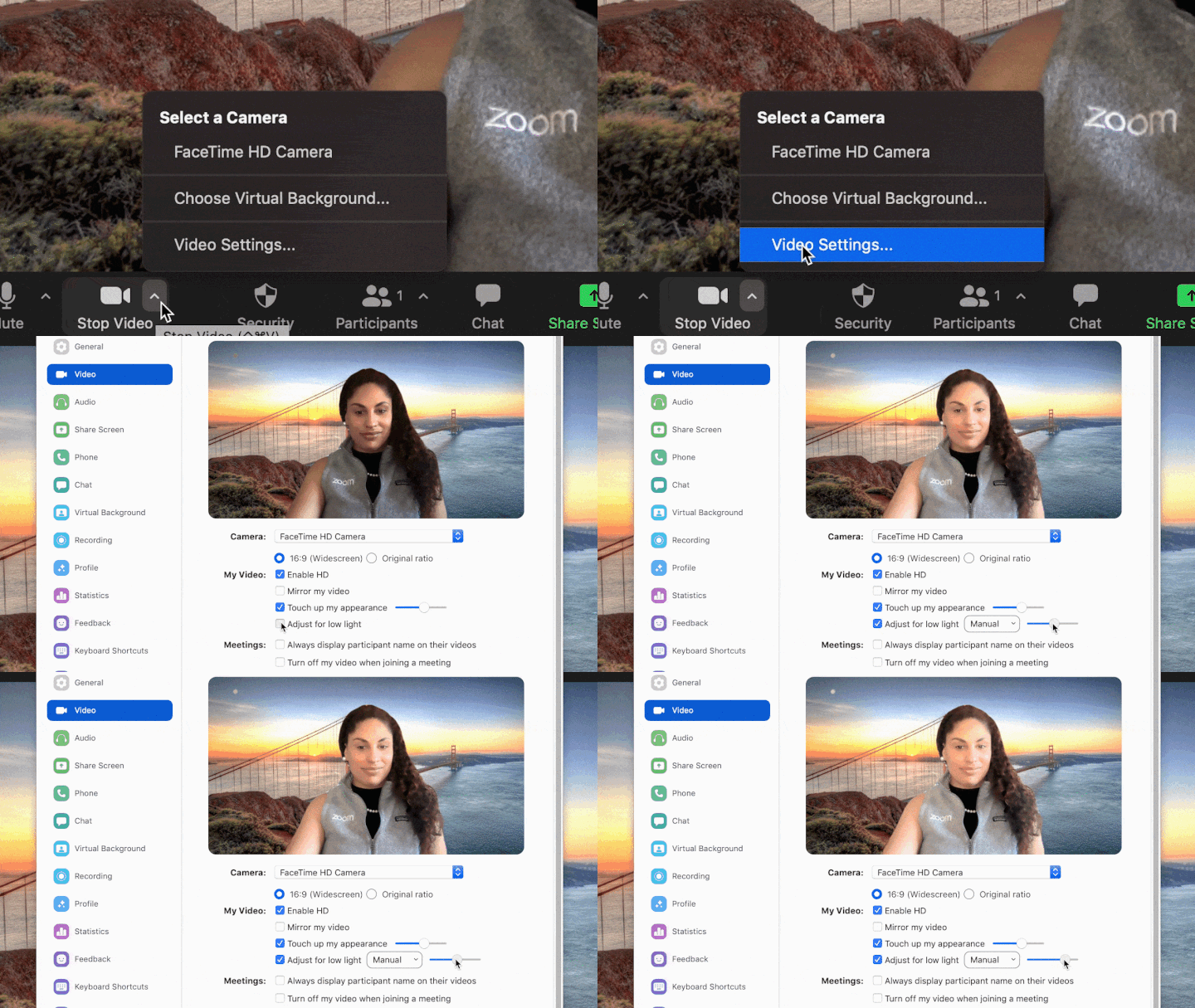
Zoom has many built-in features that improve video and image quality and make video communication more pleasant with filters, touch up and lighting. Adjust the lighting with the “Adjust for low light” feature and set the level of skin smoothing to improve your image.
Background noise suppression
The Zoom client comes with a noise suppression feature that helps eliminate distracting noises picked up by participants' microphones. Background noises such as rustling paper, typing on a keyboard, fan noise, a barking dog and other sounds will be filtered out to improve the quality of your meetings. Zoom suppresses background noise by default, but users can strengthen or weaken the feature depending on the setting and the purpose of the meeting.
Reactions
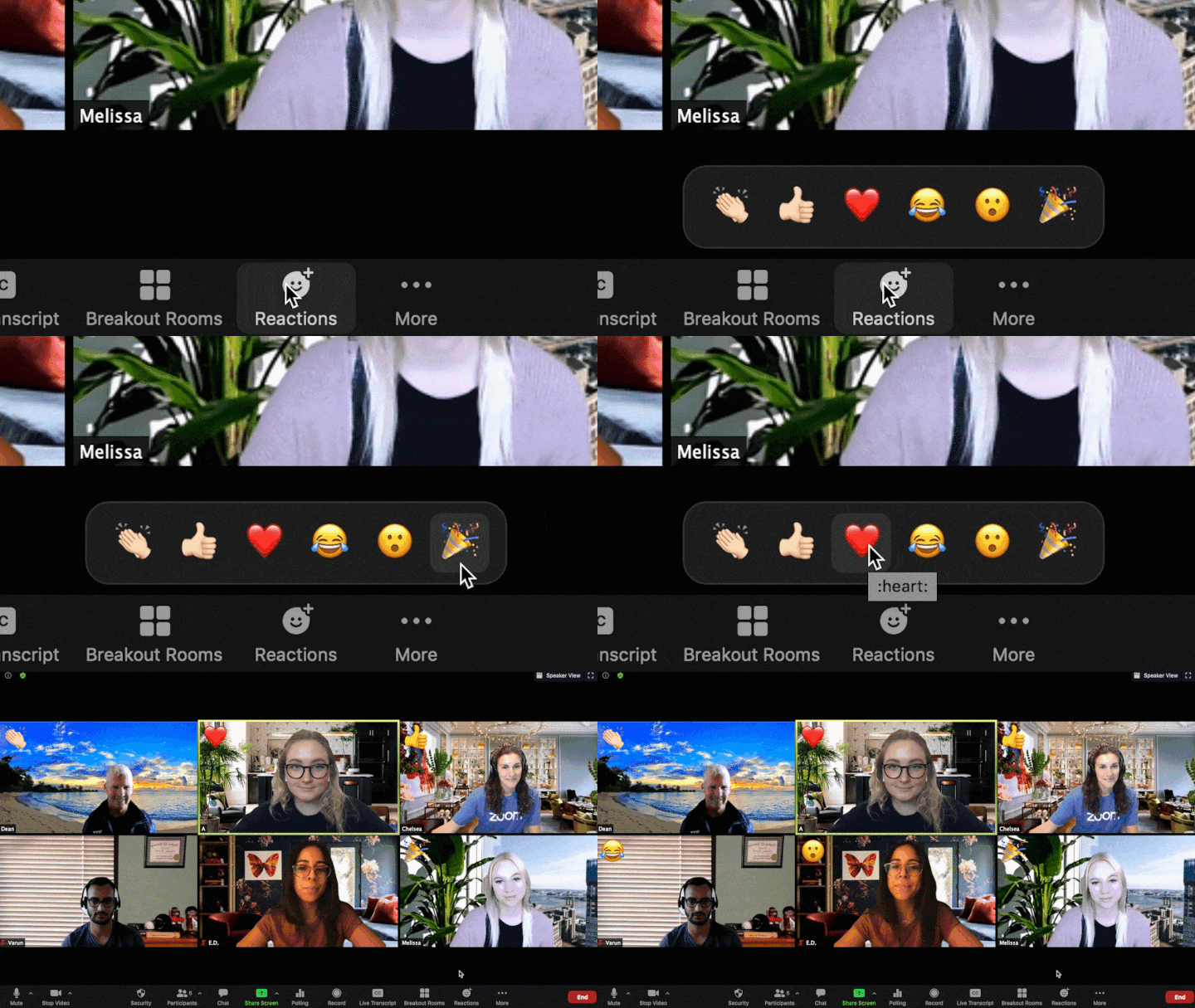
Meeting participants can place a reaction icon on their video panel and next to their name in the participants panel in order to communicate with the host and other participants without interrupting the flow of the meeting.
Slides as a virtual background
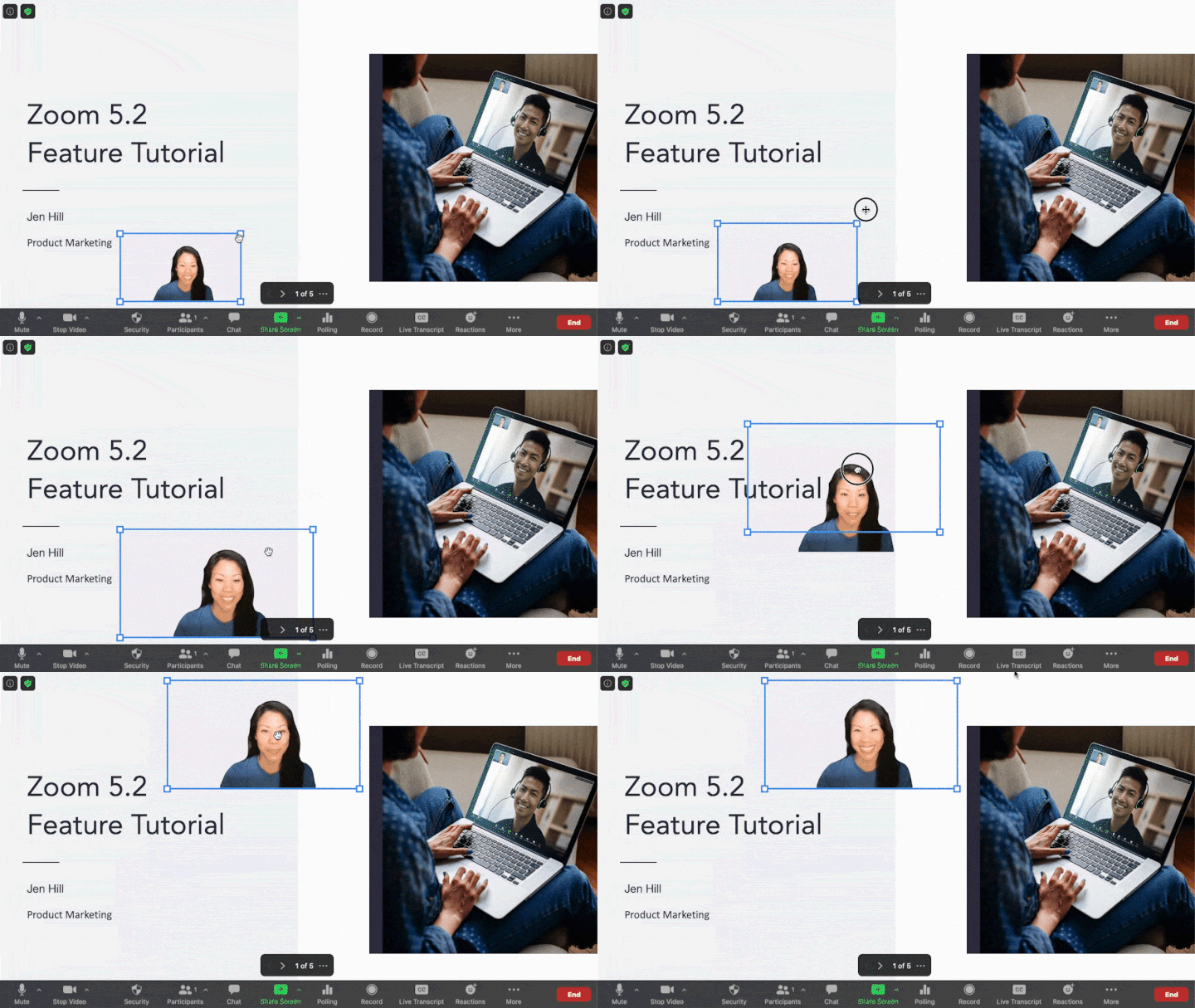
In meetings and webinars you can share PowerPoint presentations as a virtual background. Your video will be overlaid on the slides, and it can be moved to any part of the screen and resized.
Try Zoom today
We'll give you a remote demo Monday to Friday, 10:00–16:00 Moscow time, answer all your questions and provide trial access so you can explore the system yourself.
Please note: we work with legal entities only.
