
Creating and running
polls in Zoom meetings
and webinars.
Polls in Zoom meetings and webinars are a feature for creating surveys with single or multiple answer choices in real time. You can find more detailed information about polls in our article "Polls in Zoom meetings and webinars".
Let us look at creating and running polls using a Zoom webinar as an example. You can add a poll to a Zoom webinar both when scheduling it and while it is running. In a Zoom webinar you can create up to 25 polls, each of which can contain up to 10 questions. During the webinar, the questions from a single poll are displayed all at once.
Adding a poll when scheduling a Zoom webinar
- Go to the “Webinars” page and click the webinar you have created. If the webinar has not been created yet, create it.
- Scroll the webinar management page to the bottom and click “Polls”.

3. Click “Add” to start creating a poll.

4. Enter the poll title and the first question.
Specify what kind of question it should be — single choice (participants can select only one answer) or multiple choice (participants can select several options). Enter at least 2 answer options for the question.
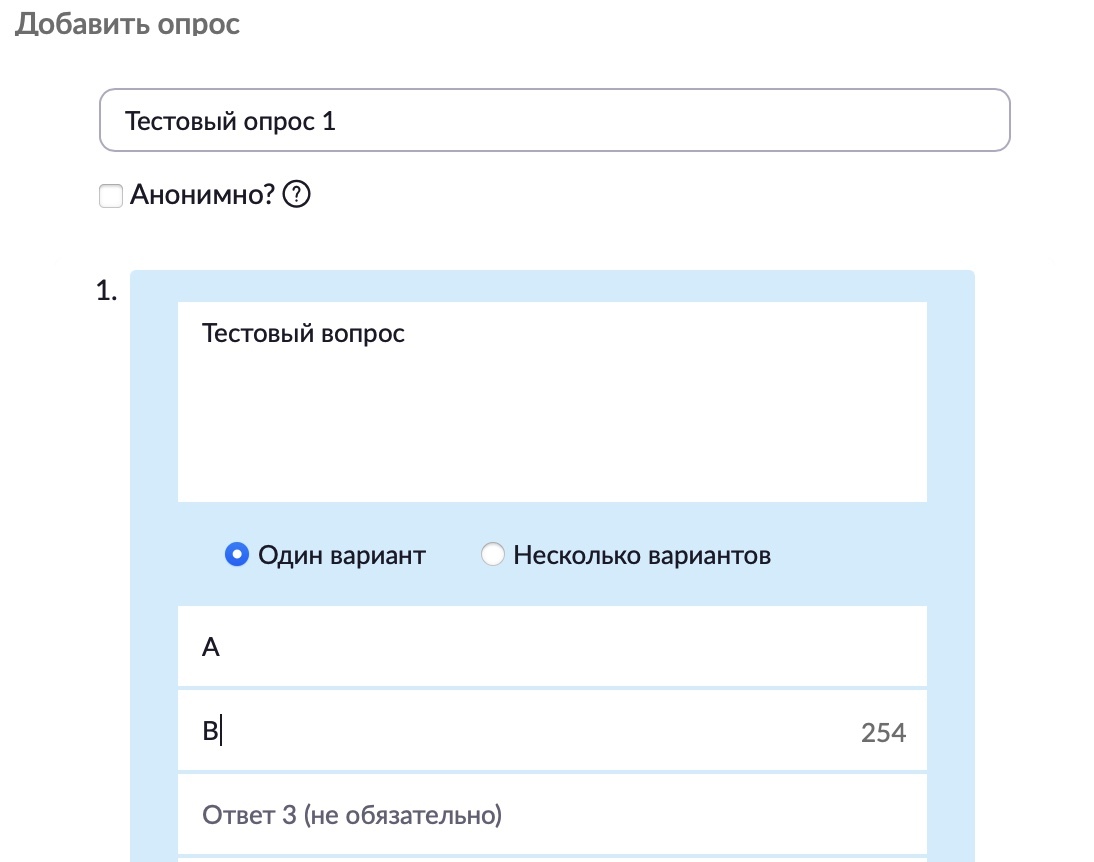
You can tick the “Anonymous” checkbox if you want to keep poll participants anonymous in the meeting and in the reports.
5. If you need to add more questions to the current poll, click “Add a Question”.
6. Once you have entered all the questions and answer options, click “Save” at the bottom of the form.
7. If you need to edit or delete a poll, click the corresponding button next to the poll you want in the “Polls” section.
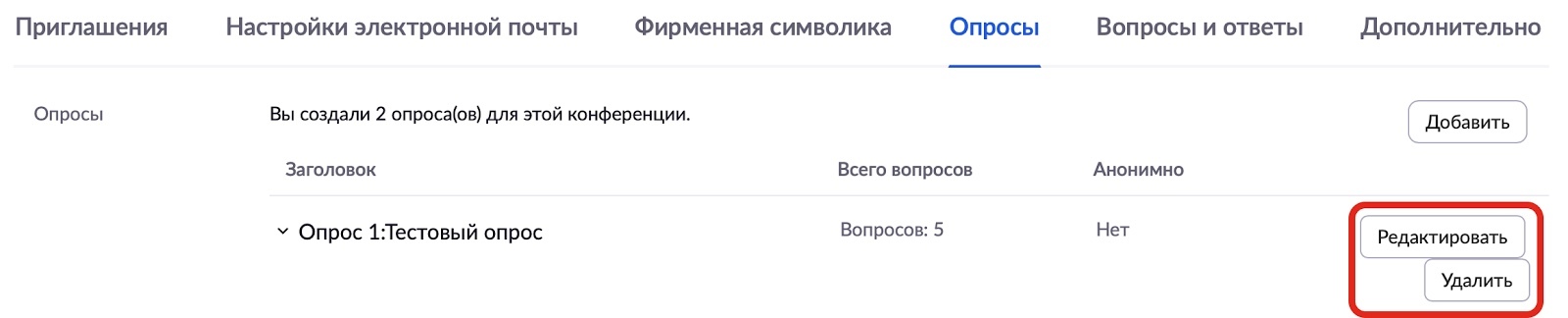
8. To create additional polls, repeat the steps described above starting from step 3.
Adding a poll while a Zoom webinar is running
If a poll has not been created in advance, it can be created during the webinar.
- Click the “Polls” button in the webinar window.

2. In the window that opens, click the “Add a Question” button.
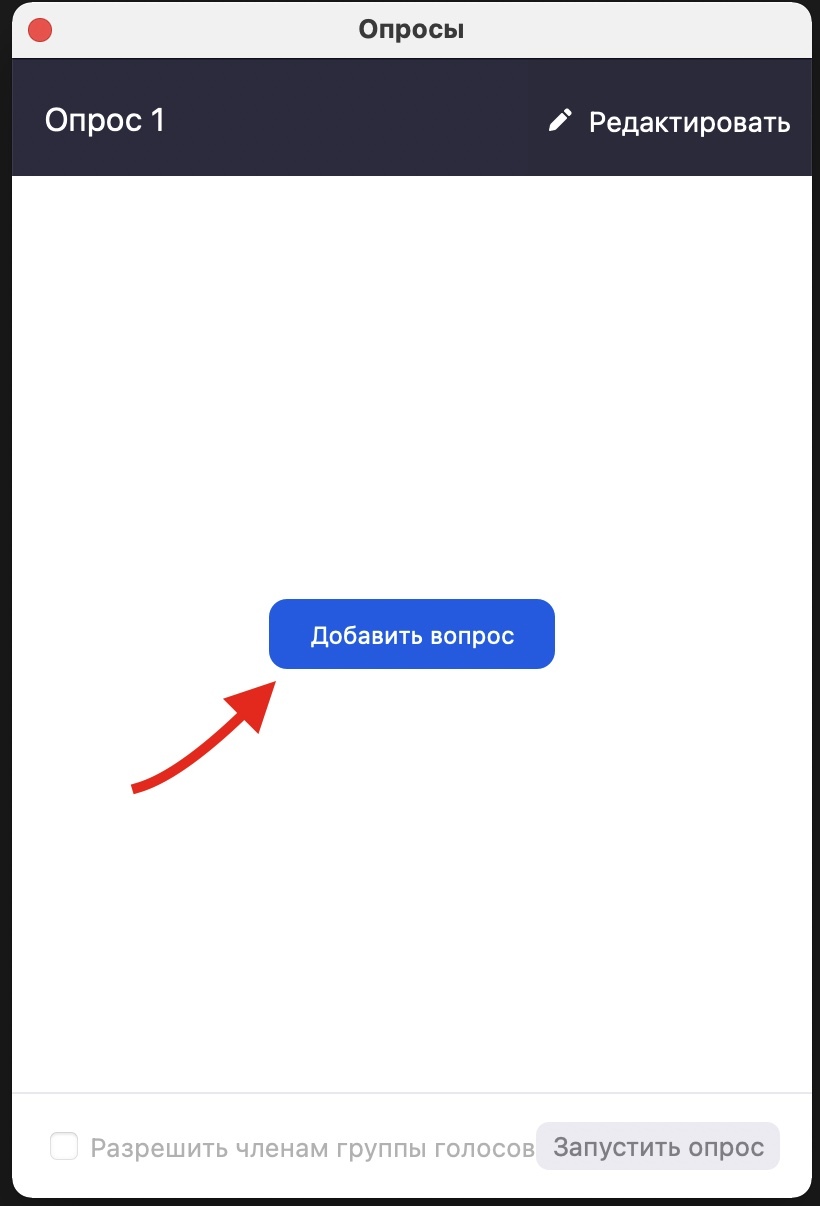
3. The standard poll creation form will open. To fill it in, follow steps 4-7 from the section “Adding a poll to a webinar when scheduling it”. The poll will be added to the current webinar automatically.
Running polls during a Zoom webinar
- When you are ready to launch the poll, click “Polls” in the host controls.

2. Select the poll you need and click “Launch Polling”.
You also have the following options available:
- The “Edit” button, to edit the questions in the poll. A page will open in your browser where you can change the questions.
- The “Allow panelists to vote” checkbox, if you want to take the panelists’ opinions into account in the poll.
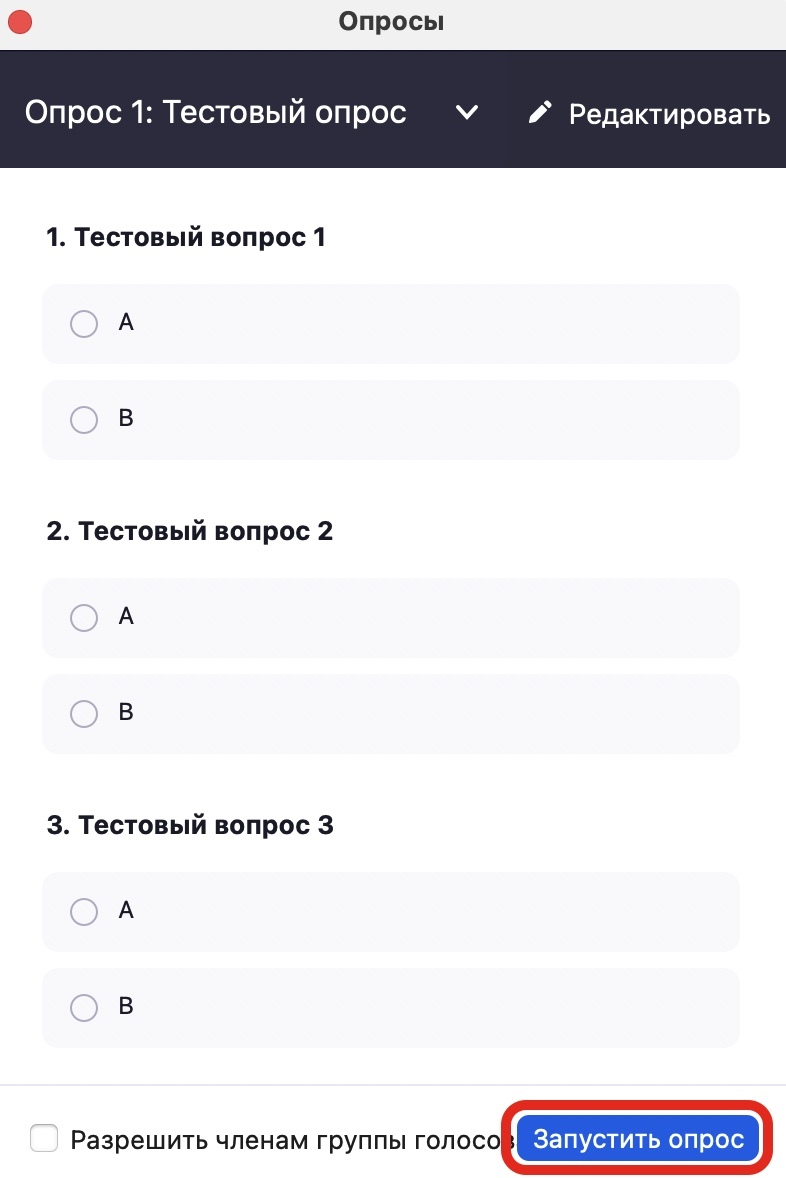
3. Once the results are in, click “End Polling”.
4. After you end the poll, you will be able to share the results with the audience.
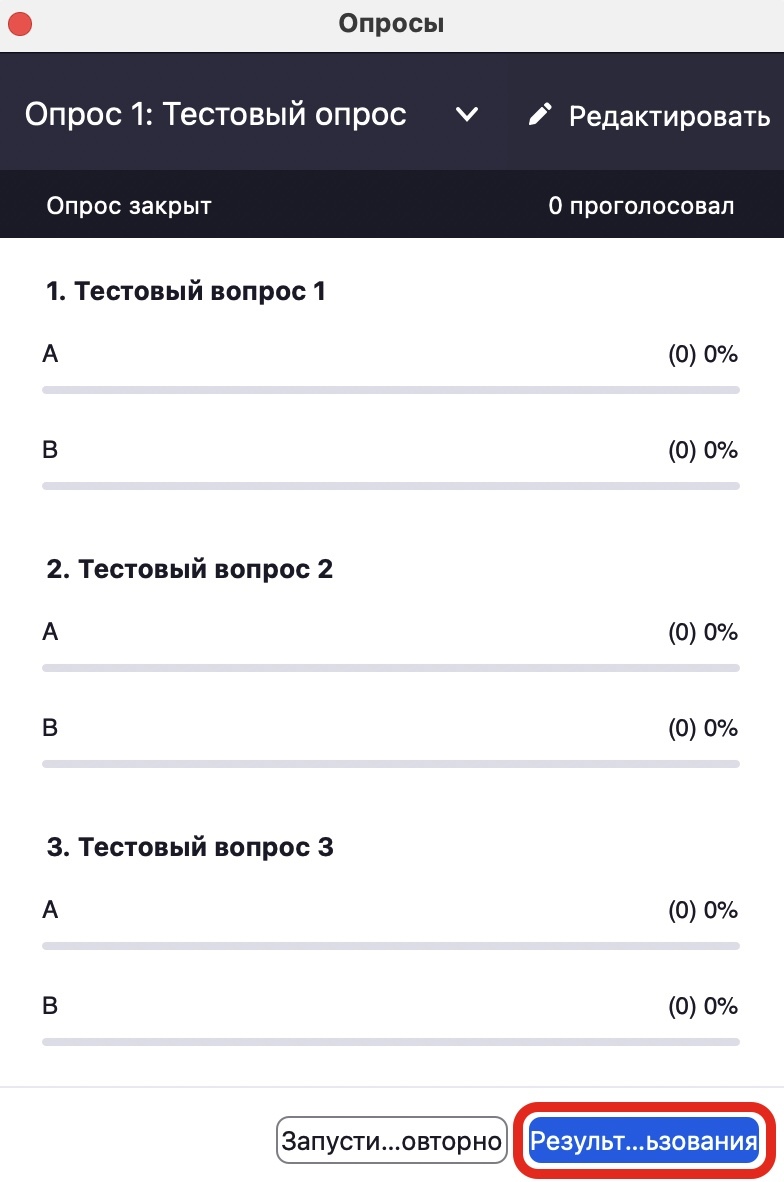
You can also find and download the poll results in the “Reports” section.
Try Zoom today
We'll give you a remote demo Monday to Friday, 10:00–16:00 Moscow time, answer all your questions and provide trial access so you can explore the system yourself.
Please note: we work with legal entities only.
