
Security in Zoom conferences.
Part 1.
In addition to Zoom’s built-in security technologies, a number of features are available for raising the level of protection of your conferences yourself. Follow the tips below to ensure security for you and the participants of your meeting.
Most of the parameters can be controlled in the account settings before the conference starts or when scheduling a particular conference. During the conference itself, the host can adjust parameters through the sections of the control panel.
1. Use the Waiting Room for participants
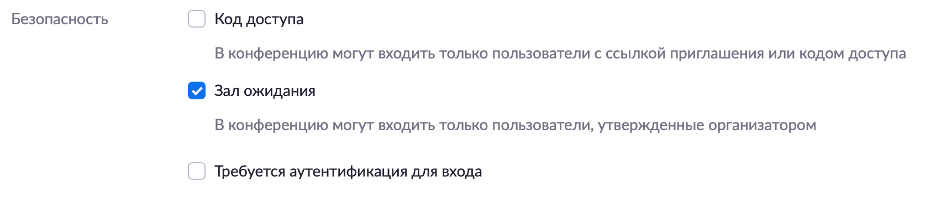
The Zoom Waiting Room feature sends participants to a waiting area before they enter the conference. The host controls who can enter and when, admitting them one at a time or all at once.
You can enable the Waiting Room when scheduling a conference on the Zoom web portal. Go to the tab Meetings and in the section Security tick the box next to Waiting Room.
2. Use an automatically generated meeting ID
Avoid using your personal meeting ID (PMI), since any user who has your personal link with that ID can join any meeting that also uses this link. A unique meeting ID will create a more secure environment for every event you hold.
To use such a meeting ID, go on the Zoom web portal to the tab Meetings and in the section Meeting ID tick the box next to Generate Automatically.

3. Use a passcode to join the meeting
You can make meetings even more secure by enabling this feature for joining your conferences.
To add a passcode, go on the Zoom web portal to the tab Meetings and in the section Security tick the box next to Passcode.
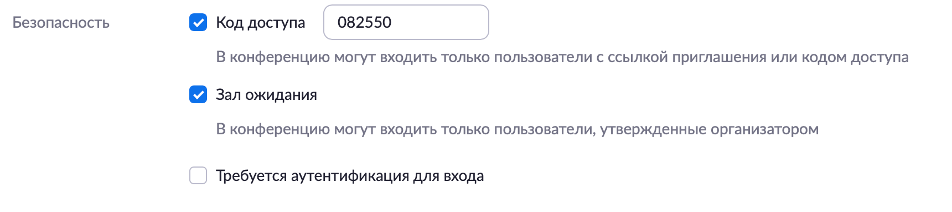
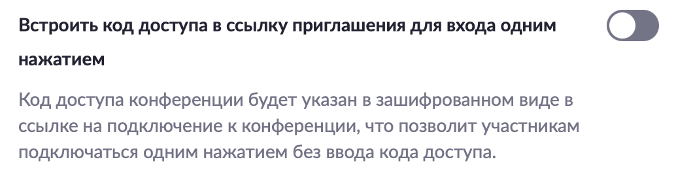
The conference passcode will be included in encrypted form in the link for joining the conference, which will let participants join with a single click without entering the passcode.
So that the user enters the passcode himself when joining a conference, turn off the setting Embed passcode in invite link for one-click join on the Zoom web portal in the tab Settings.
4. Allow only registered Zoom
users to join
* This setting is available to users with a Pro, Business, Education or Enterprise license.
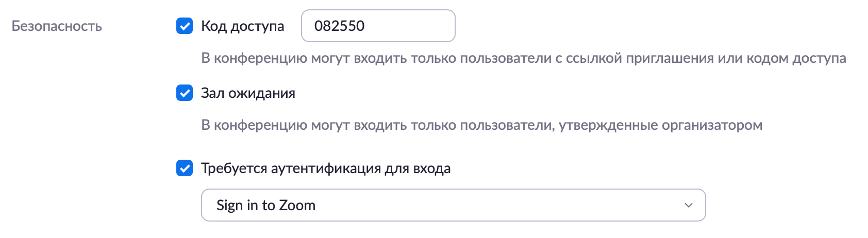
Participants who are not signed in to a Zoom account will not be able to join your conference.
You can enable this setting when scheduling a conference on the Zoom web portal. Go to the tab Meetings and in the section Security tick the box next to the item Require authentication to join.
This article has covered the security parameters that can be configured when scheduling a conference in your Zoom personal account. In the second part of the article we will explain how to ensure security using the control panel during a conference.
Try Zoom today
We'll give you a remote demo Monday to Friday, 10:00–16:00 Moscow time, answer all your questions and provide trial access so you can explore the system yourself.
Please note: we work with legal entities only.
