
Security in Zoom conferences.
Part 2.
In addition to Zoom’s built-in security technologies, a number of features are available for raising the level of protection of your conferences yourself. Follow the tips below to ensure security for you and the participants of your meeting.
In the first part of the article we covered the security parameters that can be configured when scheduling a conference in your Zoom personal account. In the second part we will explain how to ensure security using the control panel during a conference.
1. Lock the conference after it has started
Locking a conference after it has started restricts new users from joining. Once all the expected participants have joined, you can lock the conference, guaranteeing that no one else will be able to get in, even if they have the meeting ID and password.
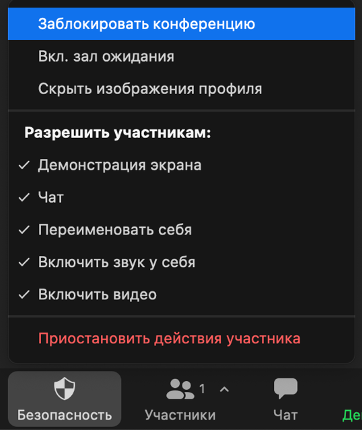
To lock the conference, click Security on the control panel, then Lock Meeting.
2. Pause screen sharing
Giving participants shared access to the screen in a conference can be an excellent way of working together, but it can also lead to unwanted actions on the part of the participants.
You can easily turn this feature on and off as needed on the control panel in the section Security.
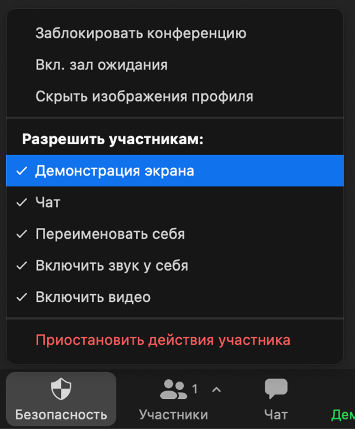
Or on the control panel in the section Screen sharing.

3. Turn off the annotation feature for the shared screen
You and your participants can draw and mark up content together during screen sharing. You can turn off the annotation feature in the settings so that participants cannot misuse it.
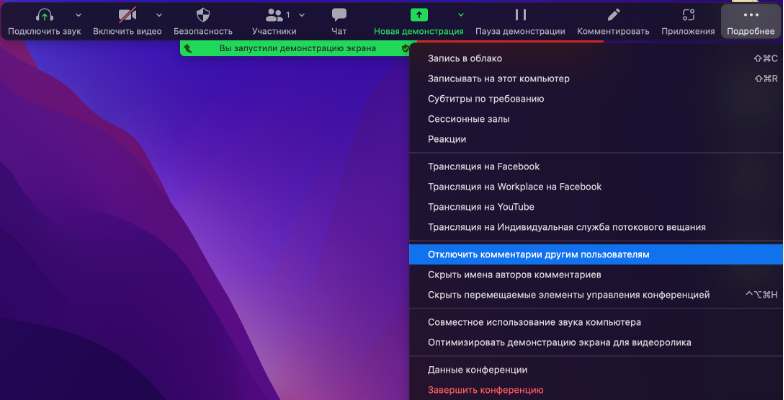
If you want to prevent participants from using annotation during screen sharing, then while sharing your screen click More and select Disable Attendee Annotation.
4. Turn off the microphone and video
To avoid unwanted and inappropriate gestures on video or distracting noise, turn off the microphones and video of all participants.
Untick the boxes next to the items Unmute Themselves and Start Video on the control panel in the section Security. You can turn these settings on and off as needed.

5. Remove an unwanted participant
In the event that someone breaks the rules of the conference, the host can remove him from the meeting.
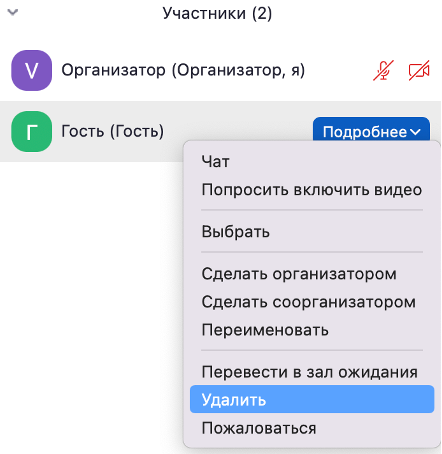
To do this, go to the participant list, select the participant and click More and Remove.
Try Zoom today
We'll give you a remote demo Monday to Friday, 10:00–16:00 Moscow time, answer all your questions and provide trial access so you can explore the system yourself.
Please note: we work with legal entities only.
