
Translated captions
in Zoom.
Translated captions are a new feature for Zoom accounts that helps to overcome the language barrier, brings people together and makes conferences and webinars more inclusive.
Zoom translated captions are an innovative feature that reduces the need for interpreters and integrations, creating an open space for communication. Users can choose the language they communicate in inside a conference or webinar, ensuring seamless interaction between participants even when they speak different languages.
The translated captions functionality makes it possible to translate the speaker’s speech into one of the available languages in real time. It is an effective tool that reduces language barriers and creates a comfortable space for successful communication on a global scale.
Caption translations are now available in 35 languages:
- Arabic (MSA)
- Bengali
- Cantonese
- Chinese Mandarin - Simplified
- Chinese Mandarin - Traditional
- Czech
- Danish
- Dutch
- English
- Estonian
- Finnish
- French (CA)
- French (FR)
- German
- Hindi
- Hungarian
- Indonesian
- Italian
- Japanese
- Korean
- Malay
- Persian
- Polish
- Portuguese
- Romanian
- Russian
- Spanish
- Swedish
- Tagalog
- Tamil
- Telugu
- Thai
- Turkish
- Ukrainian
- Vietnamese
How to enable Zoom translated captions
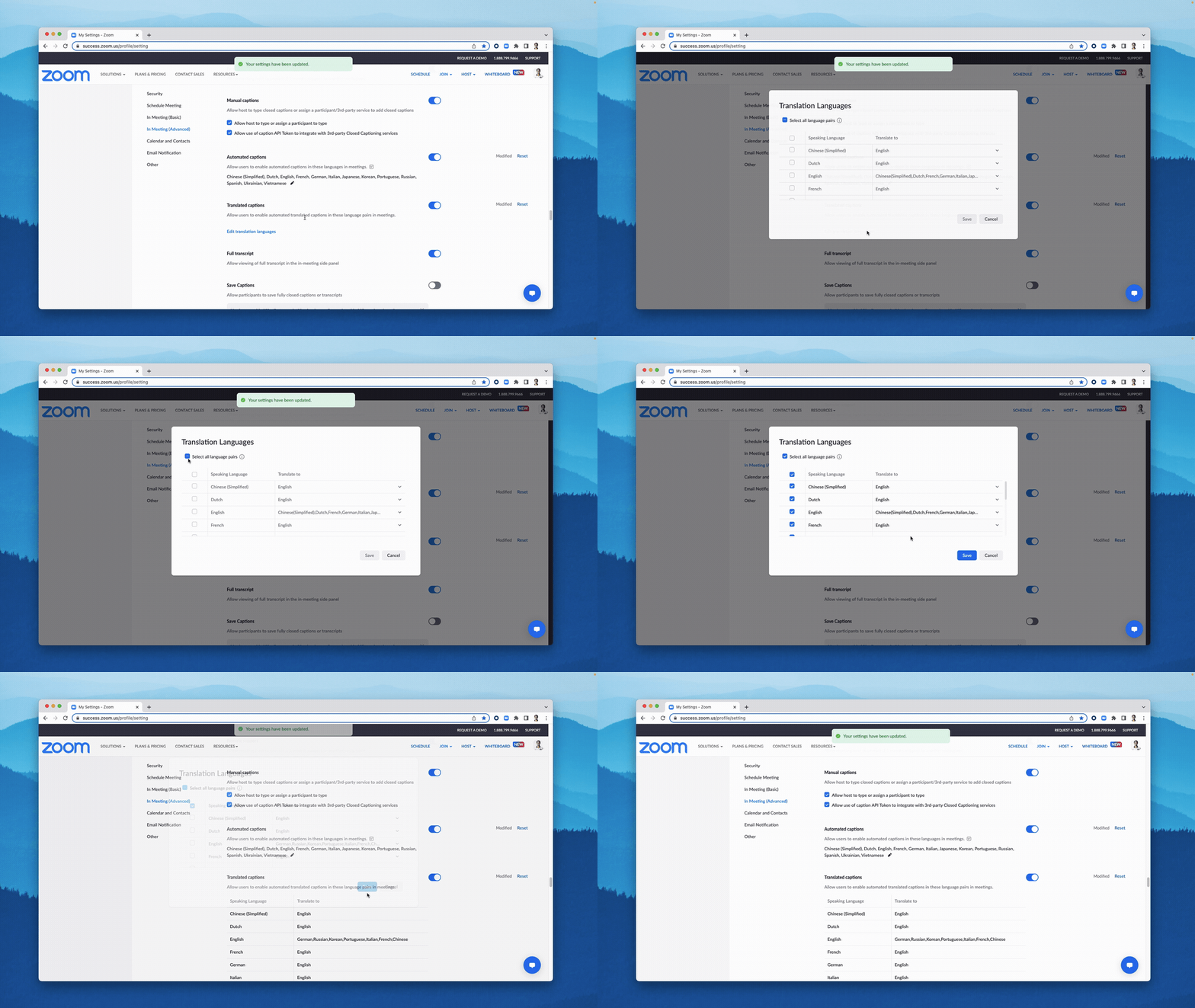
1. Sign in to the Zoom web portal as an administrator with the rights to edit account settings.
2. In the navigation menu, click Account Management, then Account Settings.
3. Go to the tab Conference.
4. In the In Meeting (Advanced) section, toggle the switch Translated captions, to enable or disable it.
5. If a verification dialog box appears, click Enable or Disable to confirm the change.
6. Click Edit Translation Languages, to choose the language pairs that will be available in the meeting.
Once the caption translation feature is enabled and your preferred languages are set, you can choose the caption language in the Show Captions menu right during the meeting. Translated captions are shown at the bottom of the screen and can be hidden at any moment.
If you want to see the captions in their full context, enable the Full Transcript feature on the Zoom web portal. Then, in the Zoom client, select View Full Transcript in the Show Captions menu during the conference. Once you select this item, you will be able to view the full transcript in a window on the right-hand side of the interface. You will also be able to see the speaker’s name next to each line for clearer identification.
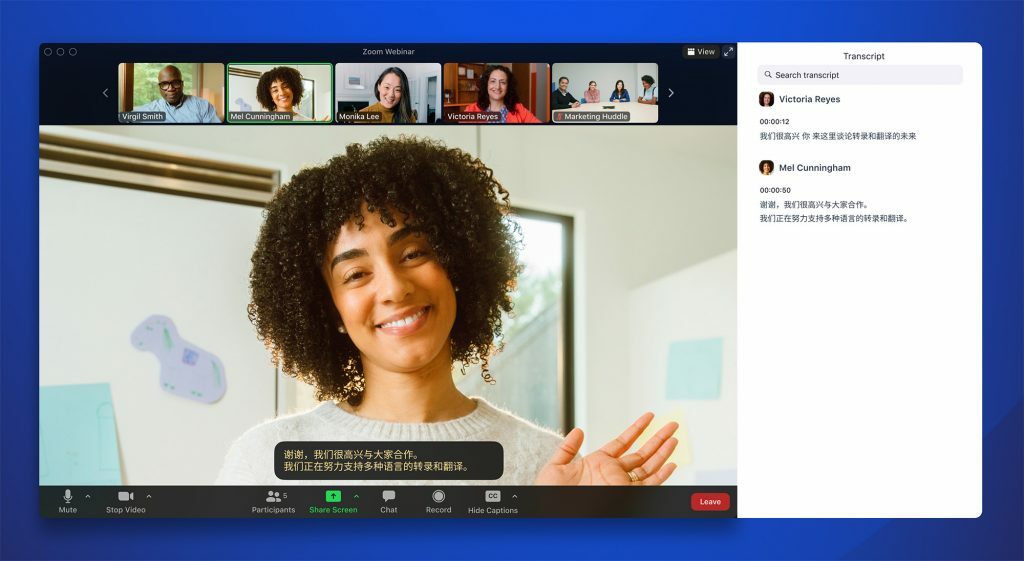
When you use caption translation in a conference or webinar, make sure the speaking language is set to the language you are actually speaking. You can do this in the Show Captionsmenu, by clicking Speaking Language. This will help other participants and attendees to see the correct captions and translations.
It is important to note: if you cannot attend the meeting and the conference or webinar is being recorded, translated captions will not be shown in the recording, but they will appear in the full transcript of the recording.
Try Zoom today
We'll give you a remote demo Monday to Friday, 10:00–16:00 Moscow time, answer all your questions and provide trial access so you can explore the system yourself.
Please note: we work with legal entities only.
